Table of Contents
Interviewed by AzSecurity on Youtube!

I recently sat down with @AzSecurity for an episode of AzSecurity – Learn by doing. We had a great deep dive into Secure Coding for PowerShell.
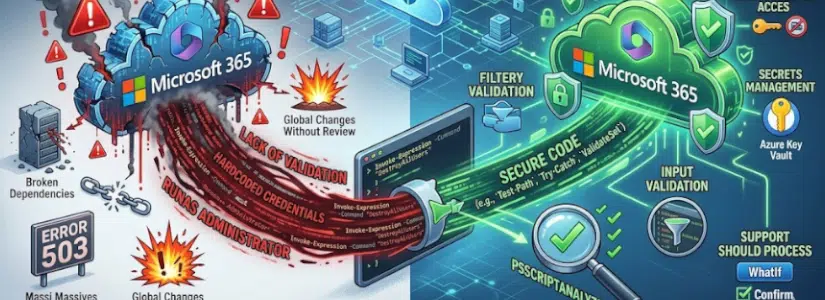
Below is a summary of the secure coding 4 pillars we discussed during the podcast.
Secure coding = guard rails for your PowerShell script
2:14 a.m. The cleanup script that “just removes empty test resource groups” runs on schedule. The variable that should hold a single resourceGroupName is $null, because the Graph call timed out an hour ago (network unreachable). The next line in the script is Remove-AzResourceGroup. By 2:15 a.m., standby gets a call.
Secure coding isn’t only about keeping hackers out of your resources; it’s about protecting the environment from the script itself.
In the world of automation, secure coding means writing scripts that are resilient, predictable, and run with the least privilege they can get away with.
The four pillars below are your guard rails.
The 4 pillars
- Input validation
- Fail-safe defaults
- Secrets management
- The principle of least privilege
And of course there are more!
Pillar 1 – Input validation
- The Goal: Never trust your input, even if it comes from another script.
- Secure Coding Practice: Use type-constrained parameters and validation attributes (
[ValidateNotNullOrEmpty()],[ValidatePattern()],Mandatory). - The Lesson: A secure script fails fast with an error rather than failing silently and deleting the wrong resource.
Never assume the data entering your script is correct or safe, even if it comes from a “trusted” internal source.
An empty variable being passed to a destructive command is exactly how a single-resource cleanup turns into a tenant-wide cleanup.
Bad validation:
- No validation
The below example will delete all resource groups when the parameter $ResourceGroupName is empty or $null.
function Remove-DemoResourceGroup {
    param(
        # No Mandatory, no validation, no type constraint.
        $ResourceGroupName
    )

    Write-Verbose "About to delete prefix: '$ResourceGroupName'"

    $query = "ResourceContainers | where type == 'microsoft.resources/subscriptions/resourcegroups' | where name startswith '$ResourceGroupName' | project name"
    $resourceGroups = Search-AzGraph -Query $query

    foreach ($rg in $resourceGroups) {
        Remove-AzResourceGroup -Name $rg.name -Force
    }
}
Good validation:
[CmdletBinding(SupportsShouldProcess, ConfirmImpact = 'High')][Parameter(Mandatory)][ValidateNotNullOrEmpty()][ValidatePattern('^rg-[a-z0-9-]{3,60}$')]Set-StrictMode -Version Latest
The below example will not delete any resource Group that does not passes the tests above.
function Remove-DemoResourceGroup {
    [CmdletBinding(SupportsShouldProcess, ConfirmImpact = 'High')]
    param(
        [Parameter(Mandatory)]
        [ValidateNotNullOrEmpty()]
        # ^rg-              -- must start with the literal "rg-" prefix
        # [a-z0-9-]{3,60}   -- followed by 3 to 60 chars, only lowercase
        #                      letters, digits, or hyphens
        # $                  -- nothing else after that (no spaces, no
        #                      wildcards, no slashes, no ;, no quotes)
        # Net effect: rejects $null, '', 'rg-*', 'rg-prod;rm -rf', etc.
        [ValidatePattern('^rg-[a-z0-9-]{3,60}$')]
        [string]$ResourceGroupName
    )

    Set-StrictMode -Version Latest
    $ErrorActionPreference = 'Stop'

    Write-Verbose "About to delete prefix: '$ResourceGroupName'"

    $query = "ResourceContainers | where type == 'microsoft.resources/subscriptions/resourcegroups' | where name startswith '$ResourceGroupName' | project name"
    $resourceGroups = Search-AzGraph -Query $query
    if ($resourceGroups.Count -eq 0) {
        write-host "Resource group '$ResourceGroupName' does not exist. Nothing to do."
        return
    }
    foreach ($rg in $resourceGroups) {
        if ($PSCmdlet.ShouldProcess($rg.name, 'DELETE Resource Group')) {
            Remove-AzResourceGroup -Name $rg.name -Force
        }
    }
}
Pillar 2 – Fail-safe defaults
- The Goal: If something goes wrong, the system stays in its most secure state.
- Secure Coding Practice: Combine
Set-StrictMode -Version Latest,$ErrorActionPreference = 'Stop',try/catch, andSupportsShouldProcesson every destructive function. - The Lesson: A typo in a property name should crash the script, not silently return
$nulland let the next line run against the wrong target.
Bad fail-safe defaults:
- No fail-safe defaults
An operator picks the tag name, one typo and the filter silently matches NOTHING, yet it will still say ‘All Done!’.
function Remove-DemoTaggedResourceGroup {
    param(
        $Prefix = 'defps-demo',
        $TagKey = 'demoOwner'   #
    )
    $rgs = Get-AzResourceGroup -ErrorAction SilentlyContinue |
    Where-Object { $_.Tags.$TagKey -eq 'defensive-ps' -and $_.ResourceGroupName -like "rg-$Prefix-delete-*" }

    foreach ($rg in $rgs) {
      Remove-AzResourceGroup -Name $rg.ResourceGroupName -Force -ErrorAction SilentlyContinue
    }

    Write-Host "All done!" -ForegroundColor Green
}
Good fail-safe defaults
$ErrorActionPreference = 'Stop'- An extra check to see if the variable contains items before continuing (with a
Write-Warning/return, can also be athrow) - And no “all Done!’ when it didn’t do anything or errored out.
function Remove-DemoTaggedResourceGroup {
  [CmdletBinding(SupportsShouldProcess, ConfirmImpact = 'High')]
  param(
    [ValidateNotNullOrEmpty()]
    [string]$Prefix = 'defps-demo',

    [ValidateNotNullOrEmpty()]
    [string]$TagKey = 'demooOwner'
  )

  Set-StrictMode -Version Latest
  $ErrorActionPreference = 'Stop'

  try {
    $rgs = Get-AzResourceGroup |
    Where-Object {
      $_.Tags -and
      $_.Tags.ContainsKey($TagKey) -and
      $_.Tags[$TagKey] -eq 'defensive-ps' -and
      $_.ResourceGroupName -like "rg-$Prefix-delete-*"
    }
  } catch {
    throw
  }

  if (-not $rgs) {
    Write-Warning "No matching resource groups found (Prefix='$Prefix', TagKey='$TagKey'). Nothing to do."
    return
  }

  foreach ($rg in $rgs) {
    if ($PSCmdlet.ShouldProcess($rg.ResourceGroupName, 'DELETE Resource Group')) {
      try {
        Remove-AzResourceGroup -Name $rg.ResourceGroupName -Force
      } catch {
        throw
      }
    }
  }

  Write-Host "All done!" -ForegroundColor Green
}
Pillar 3 – Secrets management
- The Goal: Never expose credentials, secrets, tokens, or connection strings.
- Secure Coding Practice: Pull secrets at run time from Azure Key Vault, and authenticate with a Managed Identity.
- The Lesson: A hardcoded secret in a script, even in a private repo, is a violation of secure coding.
Note: testing or debugging also needs secrets management, otherwise it’s exposed locally in your history files.
Bad secrets management:
- No secrets management
$apiKey = 'sk-live-9f2a47b1-DO-NOT-COMMIT-ME-3c8d'
Write-Host "Calling fake API with key: $apiKey"

Get-Content .\Bad-HardcodedSecret.ps1 | Select-String 'sk-live'

$apiKey = 'sk-live-9f2a47b1-DO-NOT-COMMIT-ME-3c8d'
And PSReadLine logs every command you TYPE (not the expanded value). So a script reference like $apiKey is harmless in history — but the moment you paste a literal secret into the terminal, it lands on disk in plain text.
Try it:
$key = 'sk-live-9f2a47b1-PASTED-INTO-TERMINAL'
Get-Content (Get-PSReadLineOption).HistorySavePath -Tail 2

$key = 'sk-live-9f2a47b1-PASTED-INTO-TERMINAL'
And (Get-PSReadLineOption).HistorySavePath shows you a file path, where all of your commands ever called are stored in. You should open it and check it out!
(Get-PSReadLineOption).HistorySavePath

C:\Users\baswi\AppData\Roaming\Microsoft\Windows\PowerShell\PSReadLine\ConsoleHost_history.txt
Good secrets management:
- Use a key vault or
Microsoft.PowerShell.SecretManagementmodule - Keep the secret as a
secureStringorPSKeyVaultSecret - Do not even output it on your local device
- Dispose the secret from memory
A secret from the Azure key vault retrieved with Get-AzKeyVaultSecret becomes a SecureString in memory, never a plaintext string on disk or in history.
[CmdletBinding()]
param(
    [Parameter(Mandatory)]
    [ValidateNotNullOrEmpty()]
    [string]$VaultName,
    [ValidateNotNullOrEmpty()]
    [string]$SecretName = 'demo-api-key'
)

Set-StrictMode -Version Latest
$ErrorActionPreference = 'Stop'

$secureValue = (Get-AzKeyVaultSecret -VaultName $VaultName -Name $SecretName).SecretValue

try {
    Invoke-RestMethod -Uri 'https://api.example.com/...' -Headers @{
        'x-api-key' = (ConvertFrom-SecureString -SecureString $secureValue -AsPlainText)
    }
}
finally {
    # Remove from Memory when finished
    if ($secureValue) { $secureValue.Dispose() }
}
Pillar 4 – The principle of least privilege
- The Goal: Your script should only have the permissions it needs for the specific task.
- Secure Coding Practice: Don’t use Global Administrator for a script that just reads a few Graph properties. Pick the smallest scope from the Microsoft Graph permissions reference.
- The Lesson: Secure code is useless if the identity running it has “God-mode” enabled.
Bad principle of least privilege:
- Using Global Administrator or Owner for EVERYTHING!
You can always check your jwt token and see which permissions you have with jwt.ms or use this as an example:
Connect-MgGraph -Scopes 'Directory.ReadWrite.All' -NoWelcome
$probe = Invoke-MgGraphRequest -Method GET -Uri 'https://graph.microsoft.com/v1.0/me' -OutputType HttpResponseMessage
$token = $probe.RequestMessage.Headers.Authorization.Parameter

$payload = $token.Split('.')[1]
$payload += '=' * ((4 - $payload.Length % 4) % 4)   # base64 padding
$claims = [Text.Encoding]::UTF8.GetString(
    [Convert]::FromBase64String($payload.Replace('-', '+').Replace('_', '/'))
) | ConvertFrom-Json
Write-Host "Token scopes (scp): $($claims.scp)"

Token scopes (scp): Agreement.Read.All Application.ReadWrite.All CrossTenantInformation.ReadBasic.All DeviceManagementApps.Read.All DeviceManagementConfiguration.Read.All DeviceManagementRBAC.Read.All DeviceManagementServiceConfig.Read.All Directory.Read.All Directory.ReadWrite.All email openid Policy.Read.All PrivilegedEligibilitySchedule.Read.AzureADGroup profile Reports.Read.All RoleAssignmentSchedule.Read.Directory RoleEligibilitySchedule.Read.Directory User.Read User.Read.All
Good principle of least privilege:
- Have the least privileges…
Functional vs “Secure” Code
| Feature | Functional Code (the “lazy” way) | Secure Code | Why |
| Variables | $User = Get-GraphUser -Name $input | if ($null -eq $input) { throw "No input!" } | Prevents **unintended scope execution**. Without this check, a `$null` variable can cause commands to target *all* resources |
| Errors | Script ignores errors and continues. | try { ... } catch { throw "Stop!" } | Ensures **deterministic behaviour**. Stops the script from executing logic against a corrupted or incomplete state. |
| Filtering | Fetches everything, filters in PowerShell. | Uses `$filter` in the Graph API (server-side). | Enforces **data minimisation**. Less sensitive data in local memory means less to leak via logs, dumps, or crash reports. |
| Credentials | Stored in a variable or in the .ps1. | Key Vault or via Managed Identity. | **Stops Secret Leaks:** Prevents secrets from being exposed on disk, in console history, or in **Git/Cloud history** where they remain recoverable even after deletion. |
If you put a password in your script, it’s not just in the file. It’s in your VS Code history, your PowerShell console history, and your process memory, but it gets even riskier:
If that file is on OneDrive or a cloud drive, that secret is now synced to every device you own and in version history.
Even if you delete the secret later, it’s still there in an older version waiting to be found.

And if it hits a Git repository, it’s practically permanent. Git is designed to remember every version of every file; even if you delete the secret in the next commit, it’s still there in the history for anyone, or any automated bot, to find.

Once a secret hits a repo, you don’t just “delete” it; you have to rotate it immediately.
If a hacker or even a curious insider gets access, those plain-text secrets are the first thing they look for. Using Managed Identity or Key Vault keeps that sensitive info off your machine and out of your cloud history entirely.
Disclaimer and interesting items missing in blog and demo:
Disclaimer:
- Demo scripts use
Write-Hostfor readability in an interactive terminal Set-StrictModeis on scope, but because I’m running bad- and good- scripts, I added it to each function
Items missing:
- PSScriptAnalyzer
PSAvoidUsingPlainTextForPassword,PSAvoidUsingConvertToSecureStringWithPlainText,PSAvoidUsingInvokeExpression - Script signing –
Set-AuthenticodeSignature - Secret scanning in GitHub
Invoke-Expressionclassic PS injection vector.
Thanks to Dinant for letting me join the AzSecurity podcast! It was a pleasure sharing my thoughts on Secure Coding with his audience.
